Features
Everything Nodo does in version 0.14.7, from your host list to the remote desktop, with screenshots of the real app.
Hosts and connections
Your servers organized the way you work, and connected by typing.
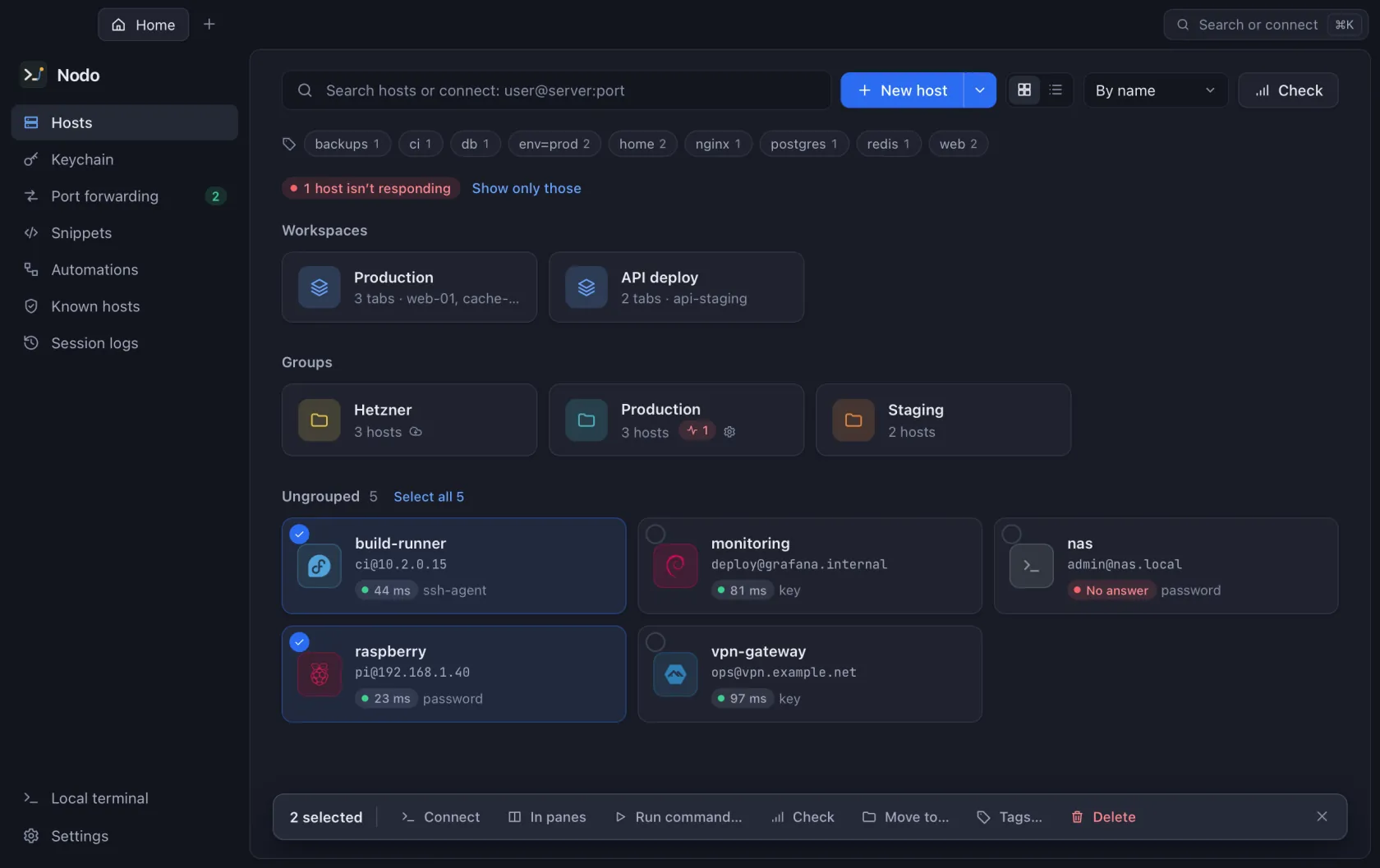
- Groups that pass settings down
- Each group has its color and settings, and its hosts inherit them: change one and they all change.
- Tags and search
- Filter by tag and search by name, address or user, in a grid or a list.
- Connect by typing
- With ⌘K, type
user@server:portand connect, even if the host isn’t saved. - Jumps and proxies
- Chained jump hosts, like ProxyJump, and a SOCKS5 or HTTP proxy per host or per group.
- SSH, Mosh, Telnet and serial
- Mosh keeps the session when you change networks; Telnet and serial for routers, switches and boards.
- Bring what you have
- Import
~/.ssh/configwith its jumps and tunnels, your keys,known_hosts, a CSV or a Nodo backup. - Many at once
- Select several hosts to connect, open them in panes, run a command or see which ones respond.
- Workspaces
- Save your tabs with their panes, SFTP, monitor and IDE, and reopen them all at once.
Terminal
The terminal you spend your day in, with what you were missing.
- Panes and broadcast
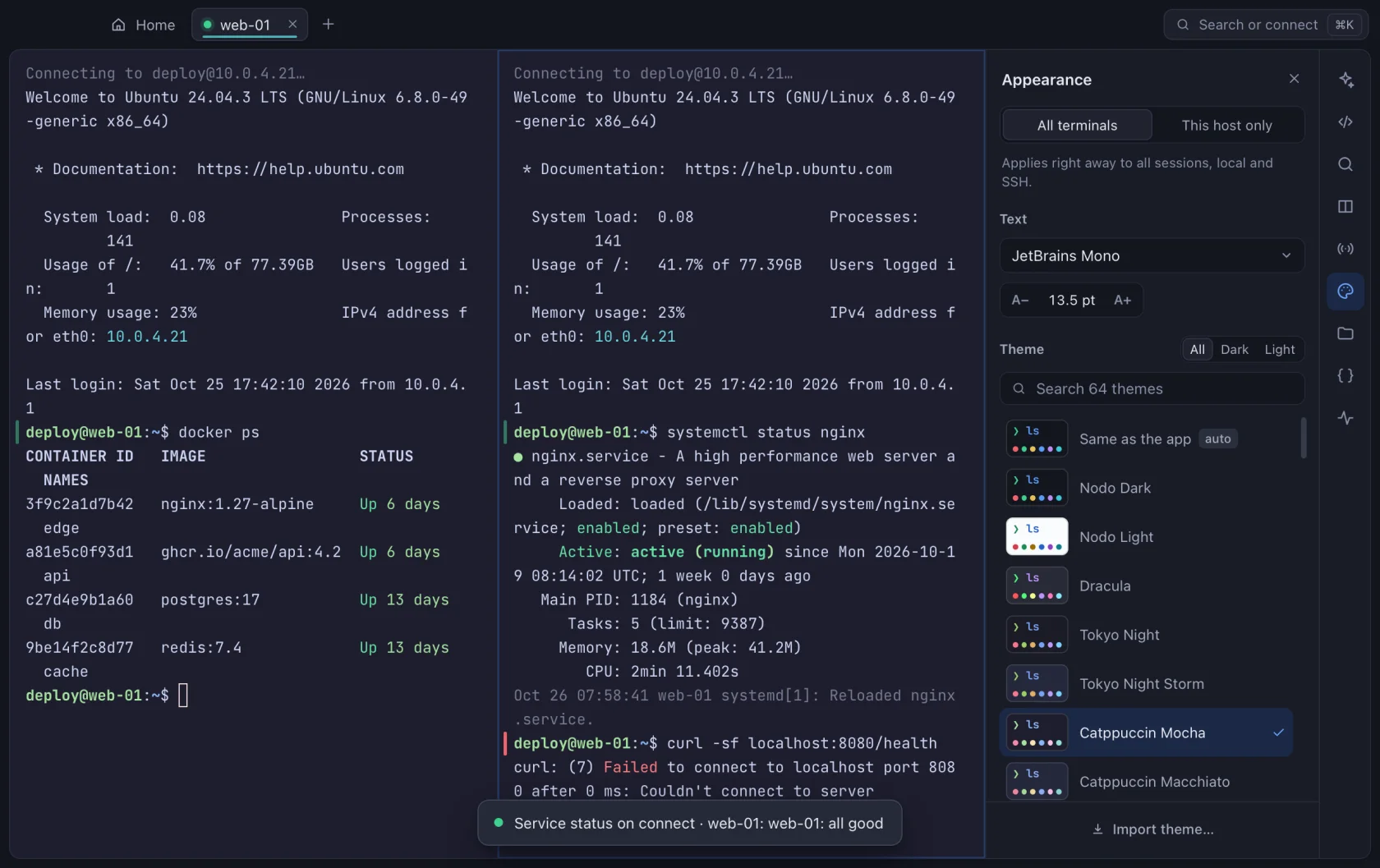
- Up to four panes per tab, and what you type can reach all of them at once.
- Autocomplete
- Suggests the rest of the command from your history on each server.
- Shell integration
- Marks every command by how it ended and knows which folder you’re in, to open SFTP or the IDE there.
- 63 themes
- And yours: import themes from iTerm2, Windows Terminal, Alacritty, Ghostty, kitty or VS Code, with a different one per server.
- Highlighting your way
- Errors, warnings, IP addresses and your own words or regular expressions, each with its color.
- Snippets
- Your saved commands, also on several servers at once with each one’s result.
- Encrypted logs
- What each session showed, encrypted, with search and plain-text export.
- Local terminal
- Your usual shell in a tab, next to your servers.
Files
Two-pane SFTP, with no other app.
- Two panes
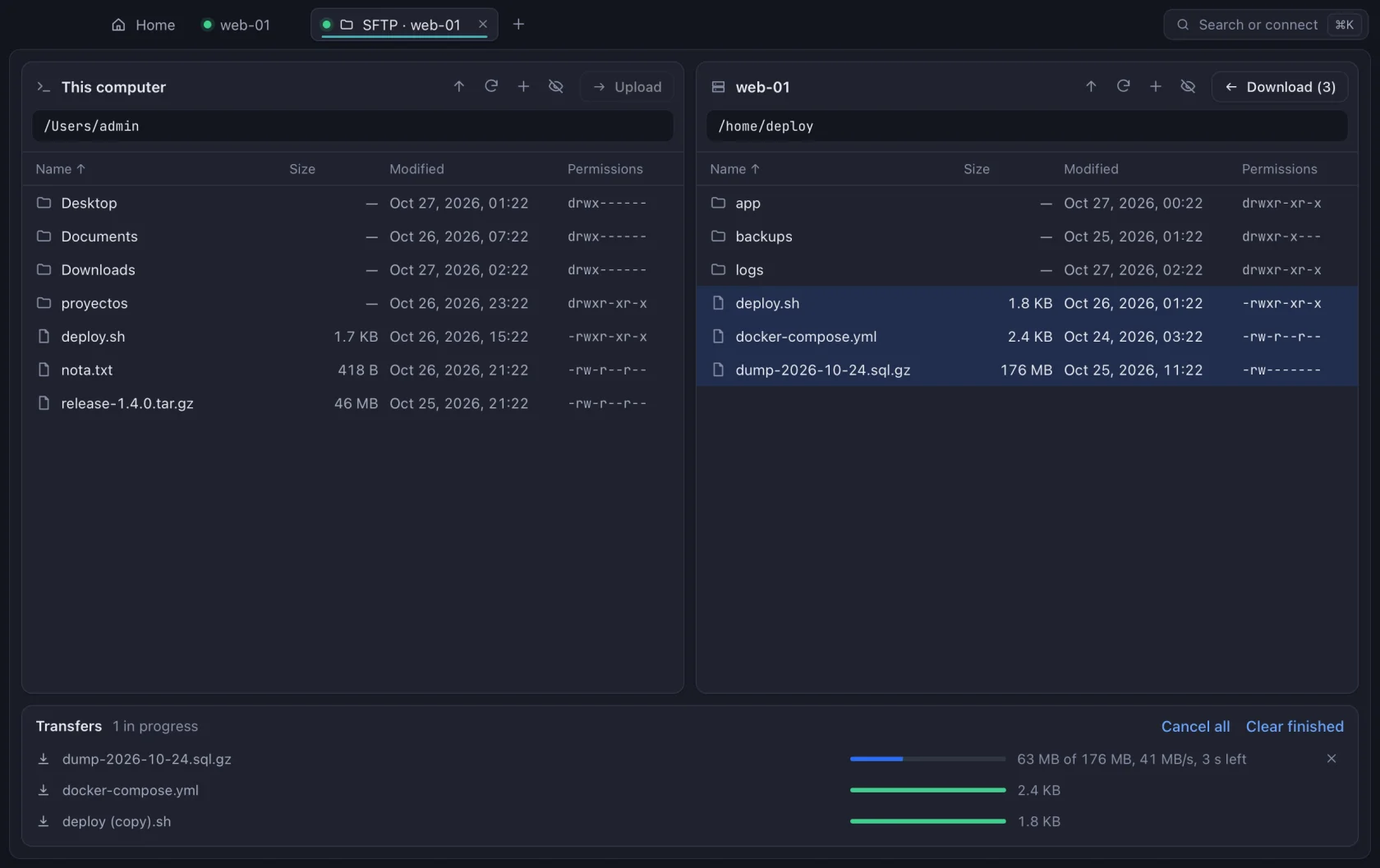
- Your computer and the server, or two servers, with drag and drop for whole folders.
- A queue with its speed
- Every transfer with its progress, and if a file already exists, it asks you what to do.
- With your editor
- Open a remote file in your own editor and it uploads when you save.
Tunnels
Reach what isn’t exposed to the internet.
- Local, remote and SOCKS
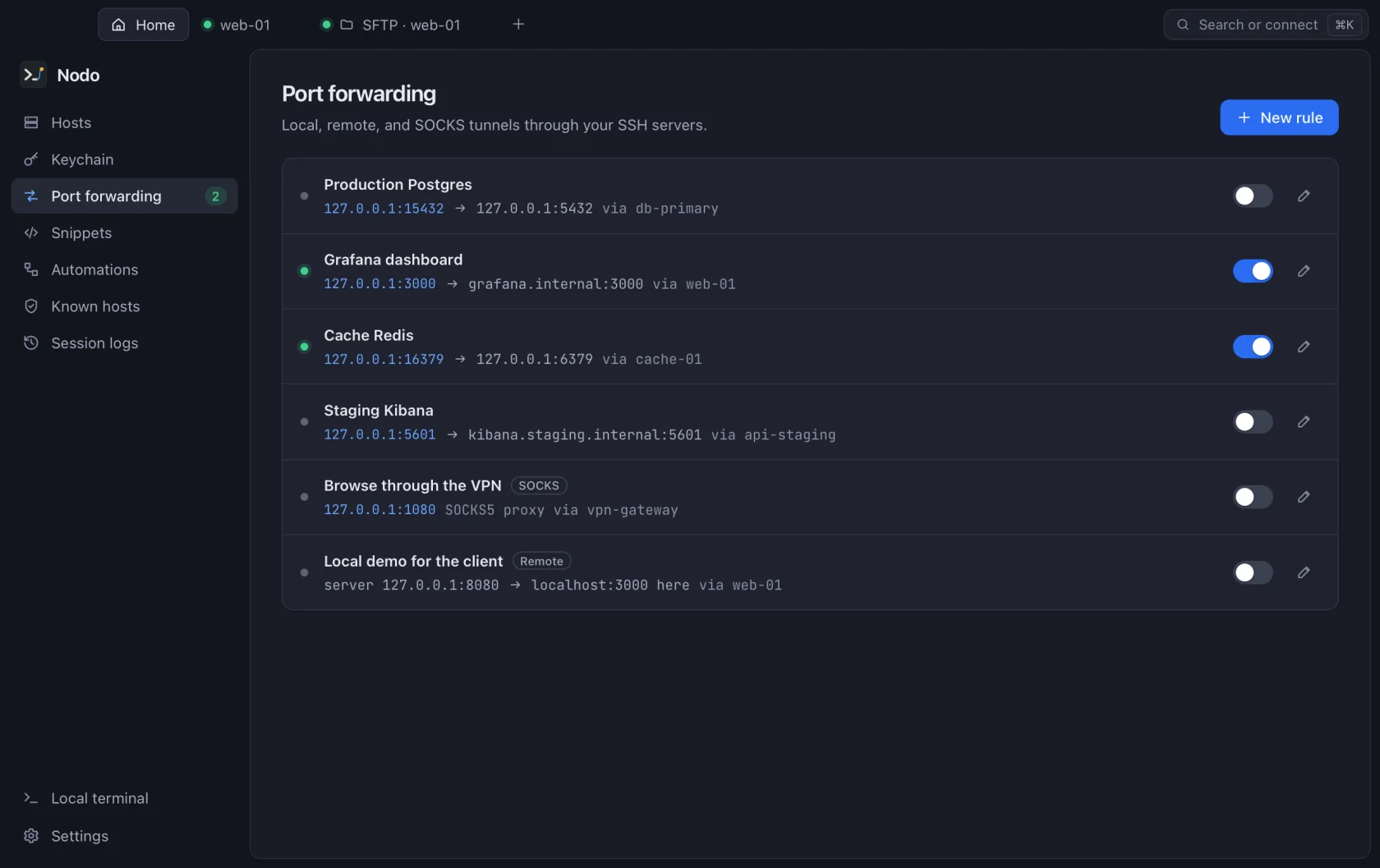
- Every rule turns on and off with a switch.
- With each host
- Tunnels travel with their host: they’re imported from
~/.ssh/configand reach your team in vaults.
Remote desktop
Windows and Linux in a tab, and an AI that drives them for you.


It works with Claude and with image-capable models from OpenAI or on your computer. While the AI works, your keyboard and mouse don’t reach the desktop, and you can stop it at any moment.
- RDP and VNC
- Windows and Linux, GNOME desktop sharing and VeNCrypt-encrypted VNC too.
- Through the SSH tunnel
- It reaches the desktop over the server’s SSH connection, without opening its ports to the internet.
- Like sitting in front of it
- Real full screen, files dragged onto the desktop, screenshots, connection stats and automatic reconnection.
Monitor, IDE and automations
With nothing to install on your servers: they go over the same SSH connection as your terminal.
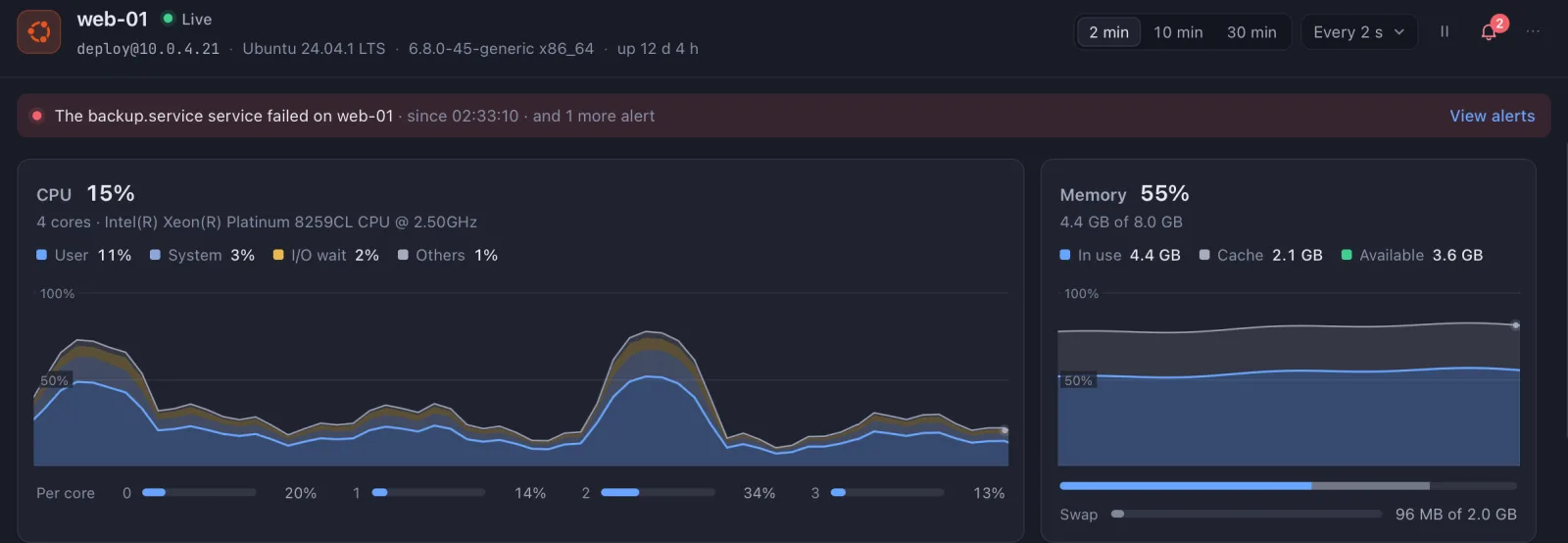
Live monitor
CPU, memory, network, disks, processes, services and containers, live. Set alerts and Nodo watches them in the background while it’s open.
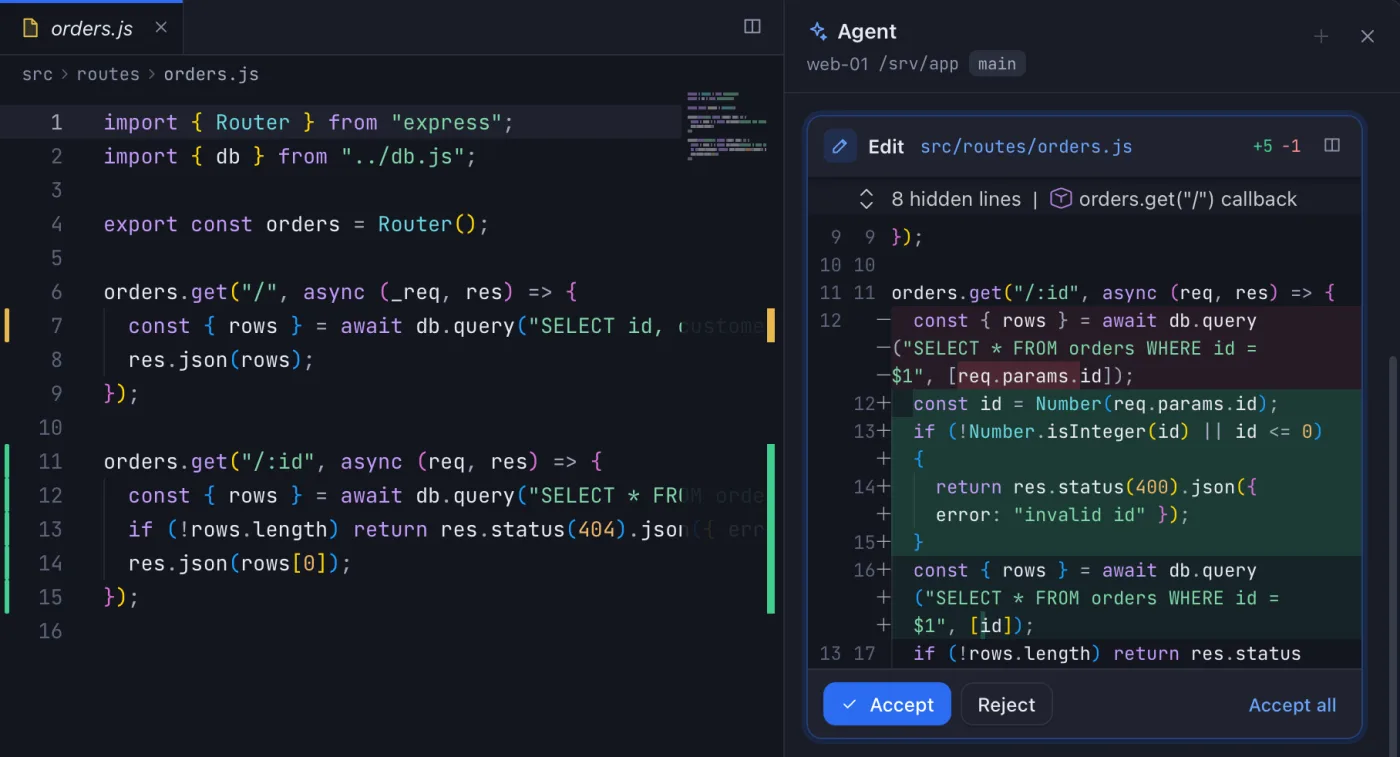
IDE with AI
Open your app’s folder on the server in the VS Code editor. Ask the agent for a change: it shows it to you as a diff and waits for your go-ahead, or pick a mode to let it do more on its own.
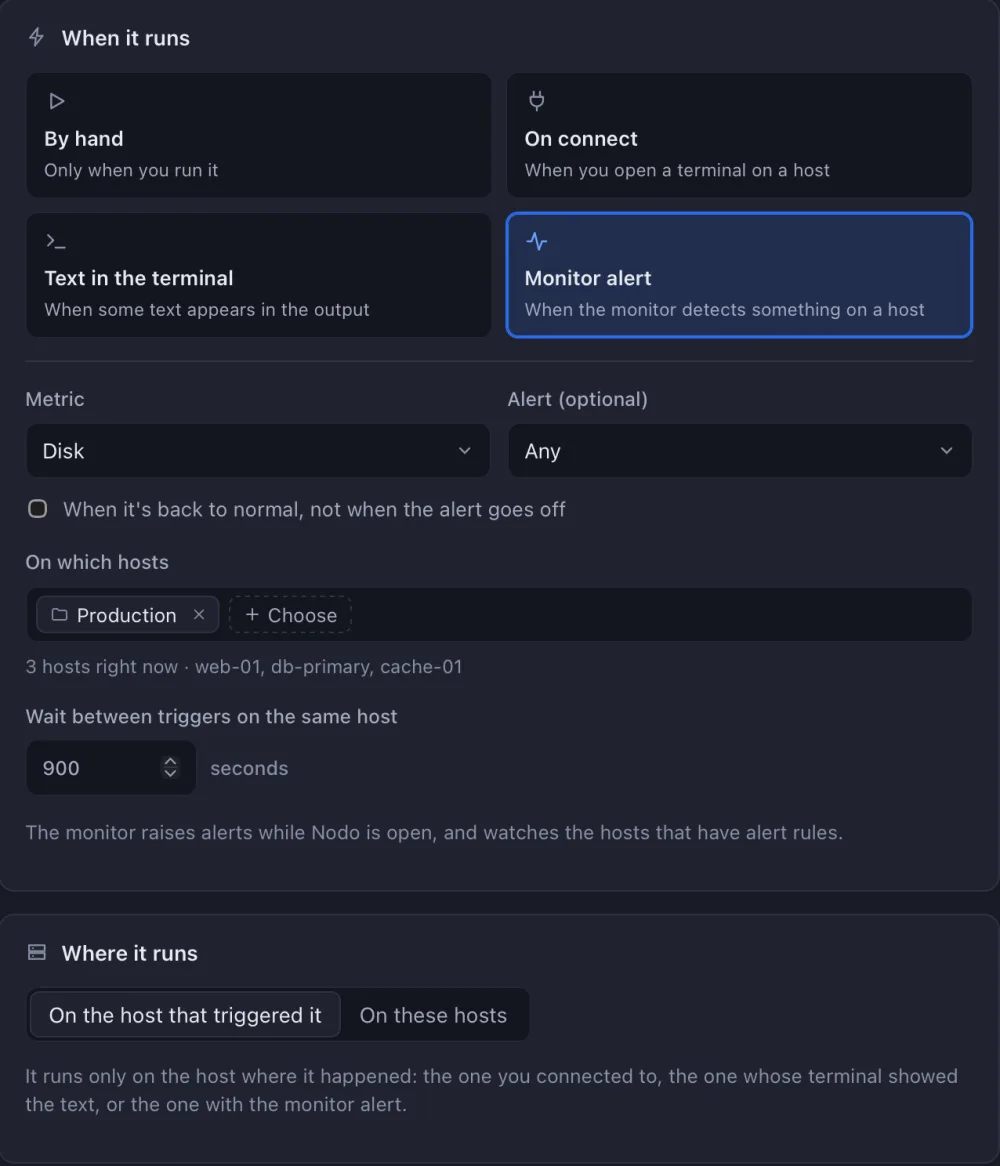
Automations
Steps with commands, files, conditions and variables on one or many servers. By hand, on connect, when some text shows up in the terminal, or on a monitor alert.
AI
With your own Anthropic or OpenAI key, or with a model on your computer.
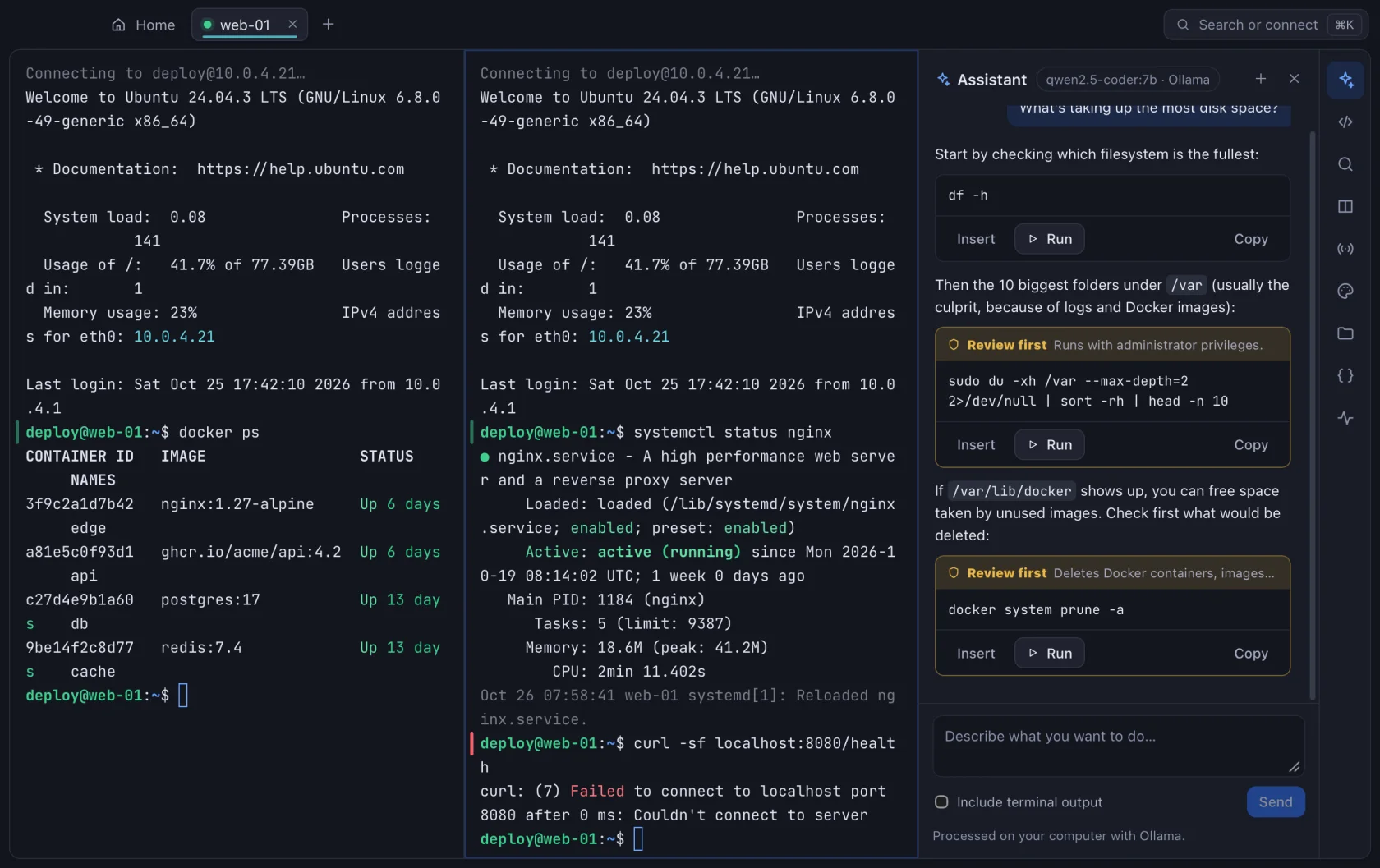
- Terminal assistant
- Explains errors and suggests commands; it only runs what you confirm.
- IDE agent
- Reads and searches the project and proposes changes as diffs. By default it asks about every change and command; its modes let you decide how much it does on its own.
- Desktop AI
- Looks at the screen and uses the keyboard and mouse, in Auto, Manual or Plan mode.
- Model from the chat
- Switch models without going to Settings: Anthropic, OpenAI and whatever you have in Ollama, LM Studio or another local server.
- Images
- Attach up to five images to your message: a screenshot of an error, a design, a diagram.
- Tokens and cost
- Every chat shows the conversation’s tokens and, with Claude, roughly what it costs.
Your cloud
Your servers from DigitalOcean, Hetzner Cloud, AWS EC2, Vultr and Linode, always up to date.
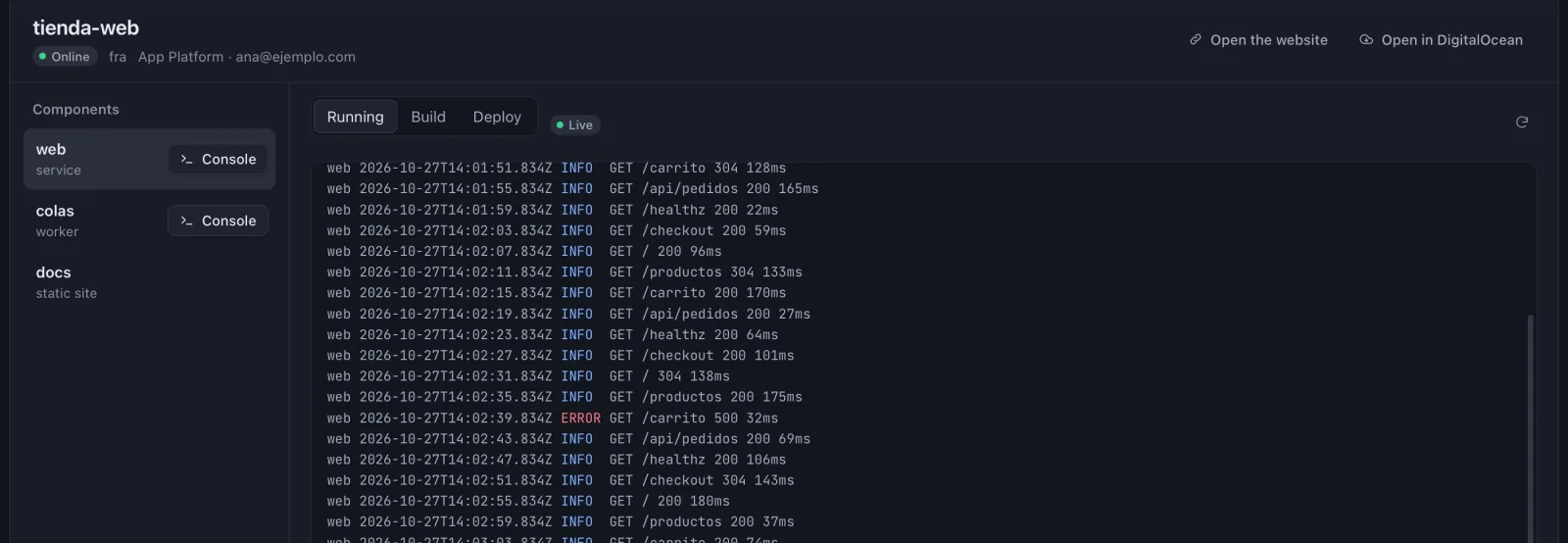
DigitalOcean apps
Live App Platform runtime, build and deploy logs, with your highlighting rules, and a console inside each component.
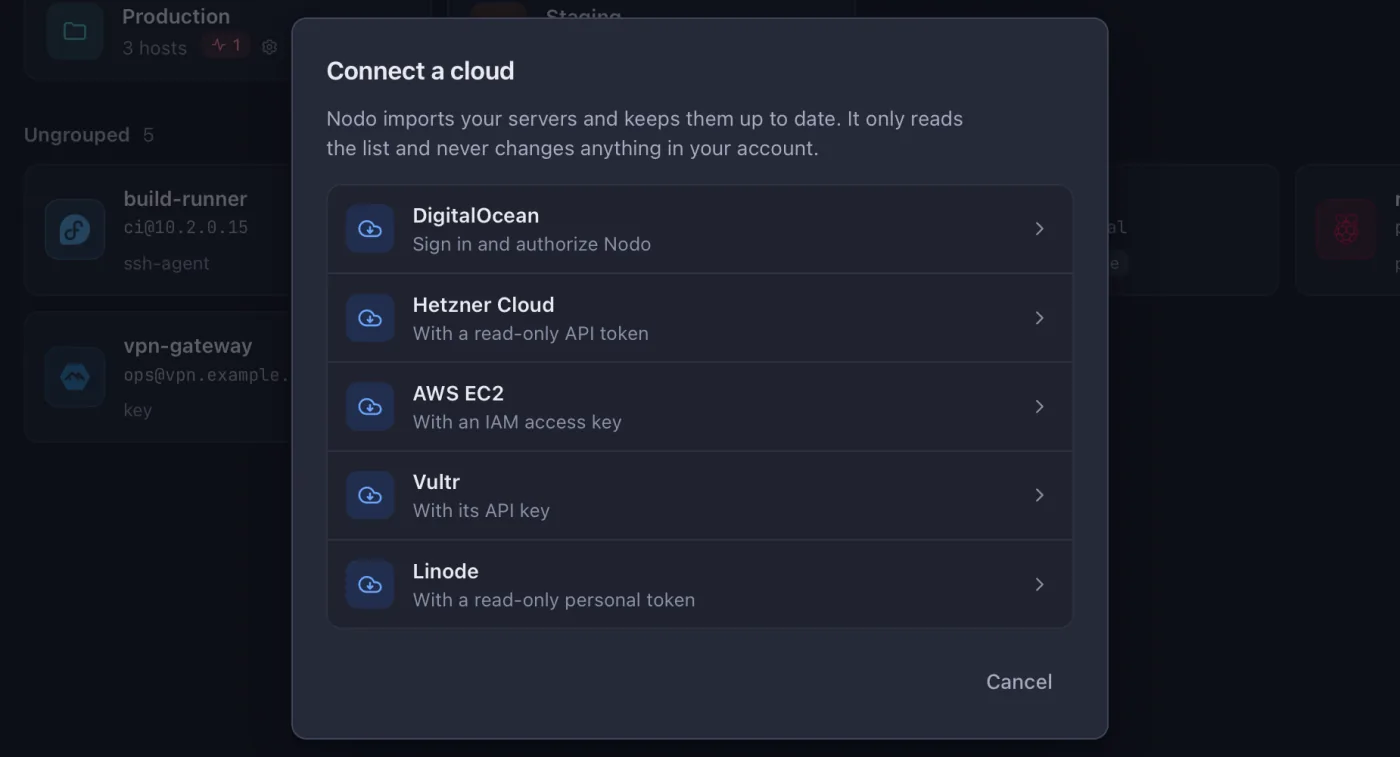
Five clouds
DigitalOcean, Hetzner Cloud, AWS EC2, Vultr and Linode. Your servers show up as hosts and update on their own; Nodo only reads the list.
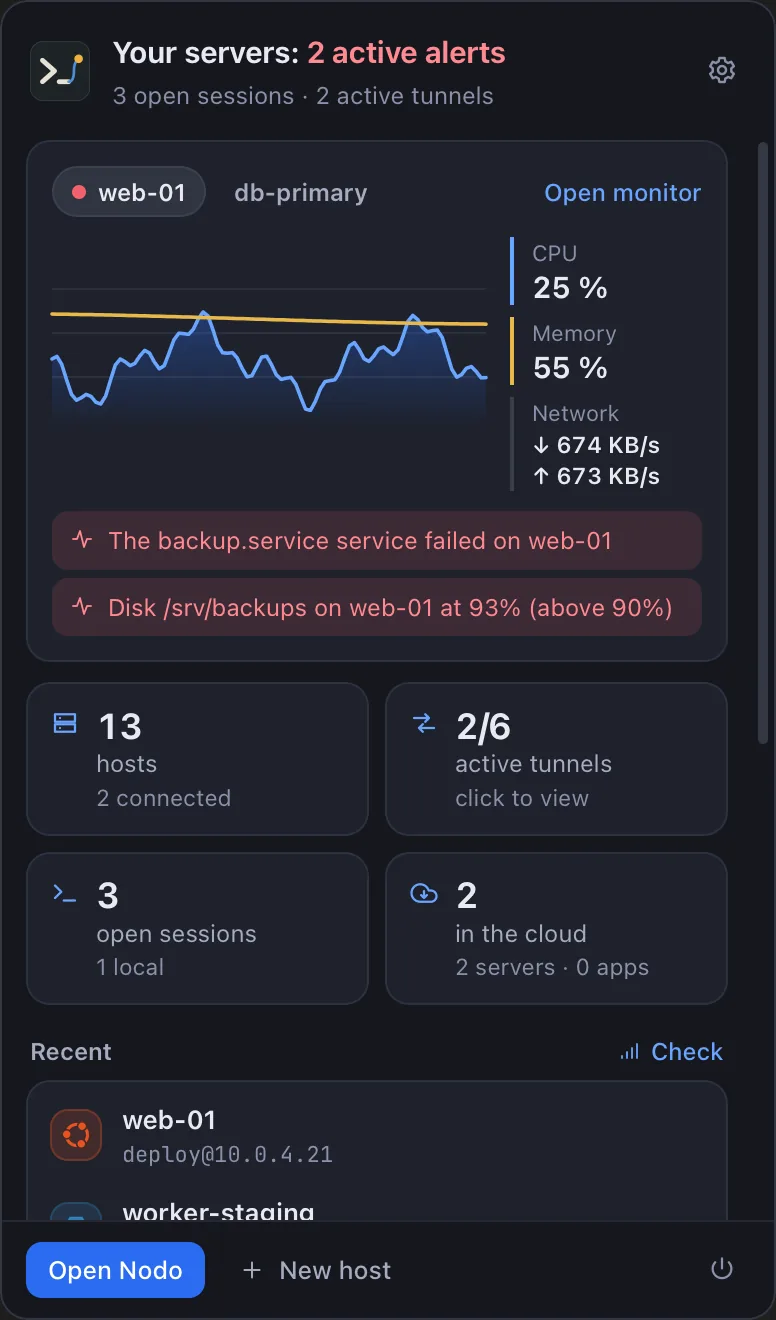
In the menu bar
The monitor, alerts, tunnels and your recent hosts, one click away. On Windows and Linux, in the system tray.
Sync and teams
Your hosts on all your computers and your team’s on each of theirs, encrypted before they leave.
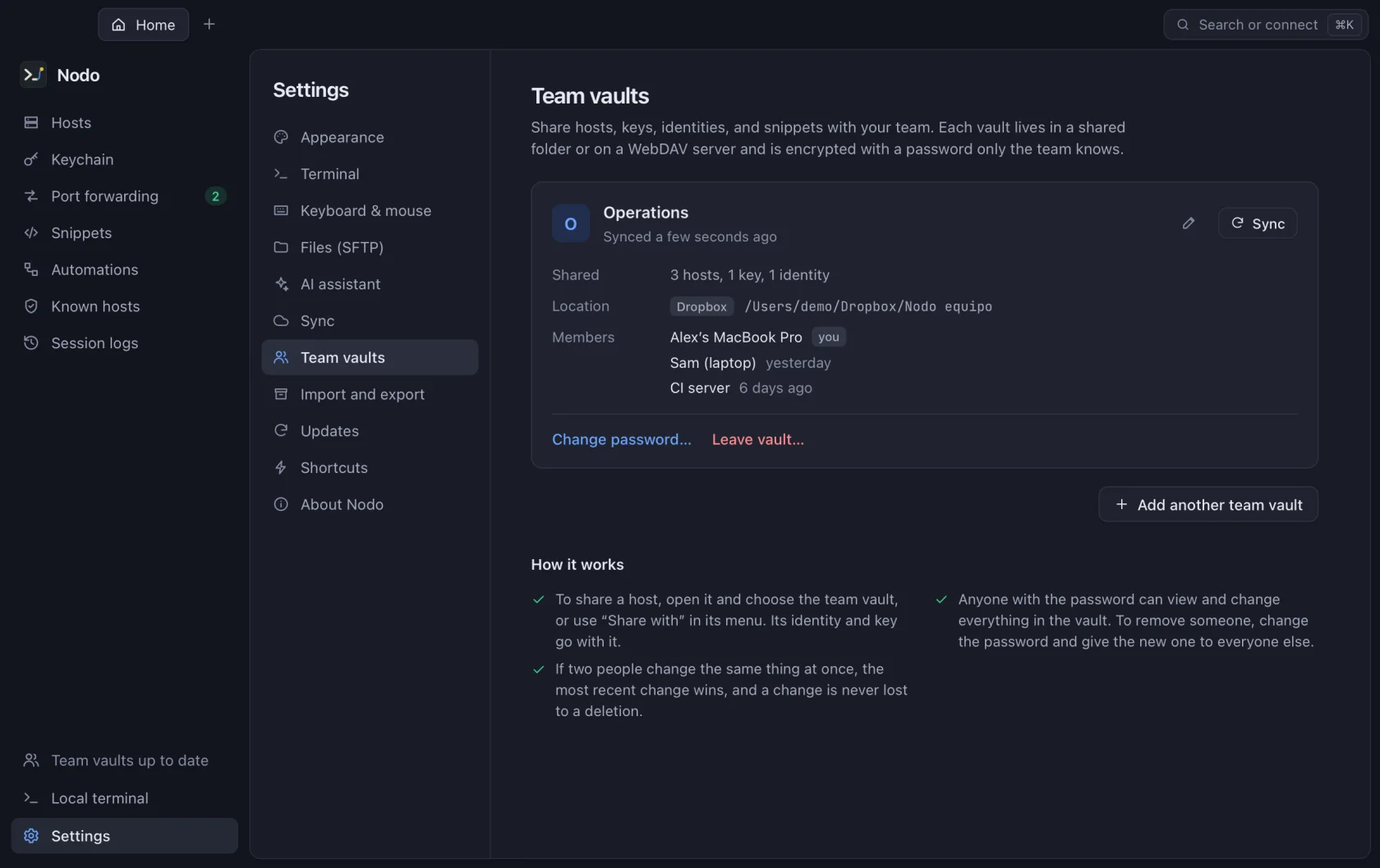
- Encrypted sync
- Hosts, keys, identities and snippets in your iCloud Drive, Dropbox, OneDrive or Google Drive folder, or on your WebDAV.
- Team vaults
- An encrypted vault in a shared folder: every teammate gets the hosts with their key, their tunnels and an already verified fingerprint.
- No Nodo servers
- Only you and your team know the password, and the data goes only to your own storage.
Security
Your secrets stay on your machine.

- System keychain
- Passwords, keys and passphrases go to Keychain, Credential Manager or Secret Service.
- FIDO2 keys
- Create your SSH keys on a YubiKey: every connection asks for a touch and, if you want, the PIN.
- Verified fingerprints
- The first time, Nodo shows you the server’s fingerprint, and warns you clearly if it changes.
- Signed updates
- Every update is signed, and the app verifies the signature before installing it.
Keyboard
Every frequent action has a shortcut, and you can change any of them.
General
- Search hosts, snippets, and actions
- Command KControl Shift K
- New host
- Command NControl Shift N
- New local terminal
- Command TControl Shift T
- AI assistant
- Command IControl Shift I
Tabs
- Go to an open tab
- Command JControl Shift J
- Next tab
- Command Shift ]Control Tab
- Previous tab
- Command Shift [Control Shift Tab
- Close tab
- Command WControl Shift W
Terminal
- Search the terminal
- Command FControl Shift F
- Clear the terminal
- Command Shift KControl Shift L
- Snippets panel
- Command Shift SControl Shift S
- Larger text
- Command =Control =
Panes
- Split pane
- Command DControl Shift D
- Type in all panes
- Command BControl Shift B
- Move between panes
- Command Option arrow keysControl Option arrow keys
On your system
A real desktop app on macOS, Windows and Linux.
- macOS, Windows and Linux
- Apple Silicon and Intel, Windows 10 and 11, and Linux x86_64 and ARM64.
- English and Spanish
- Follows your system’s language, and you change it in Settings › Appearance.
- In the menu bar
- The monitor, alerts, tunnels and your recent hosts one click away; on Windows and Linux, in the tray.
- Updates itself
- Downloads every release in the background, verifies its signature and asks you before restarting.
- Light and dark
- A light, dark or system theme, with six accent colors.
- Lightweight
- Written in Rust with your system’s web engine: the installed app takes up 96 MB.
Try it today
Free, no sign-up. Every new release reaches you on its own.